• The elements of design

    The elements of design

    Building Blocks of Visual Communication

    Design is more than aesthetics—it’s a language that communicates ideas, emotions, and functionality. At its core are the elements of design, the fundamental components that shape every visual composition. Understanding these elements is essential for anyone looking to create impactful and meaningful designs.


    1. Line

    Lines are the most basic element, guiding the viewer’s eye and creating structure. They can be:

    • Straight: Suggest stability and order.
    • Curved: Convey movement and softness.
    • Diagonal: Imply action and dynamism.

    2. Shape

    Shapes define boundaries and create form. They fall into two categories:

    • Geometric: Squares, circles, triangles—precise and structured.
    • Organic: Free-form, irregular shapes—natural and fluid.

    3. Color

    Color evokes emotion and sets the tone. Key aspects include:

    • Hue: The actual color (red, blue, green).
    • Value: Lightness or darkness.
    • Saturation: Intensity or purity of the color.

    4. Texture

    Texture adds depth and tactile quality—either real or implied. It can make a design feel smooth, rough, soft, or hard, influencing how viewers perceive the materiality of an object.


    5. Space

    Space refers to the area around and between elements. Effective use of:

    • Positive Space: The main subject.
    • Negative Space: The empty areas that create balance and clarity.

    6. Form

    Form is the three-dimensional counterpart of shape, adding volume and depth. It’s crucial in product design, sculpture, and 3D graphics.


    7. Value

    Value deals with lightness and darkness, creating contrast and emphasis. It helps establish mood and guides the viewer’s focus.


    Why These Elements Matter

    Mastering these elements allows designers to:

    • Create visual hierarchy.
    • Communicate messages effectively.
    • Evoke emotions and influence perception.

    Whether you’re designing a logo, a website, or a piece of art, these elements are your toolkit for crafting compelling visuals.

  • Cops arrest Shepard Fairey in Boston

    Cops arrest Shepard Fairey in Boston

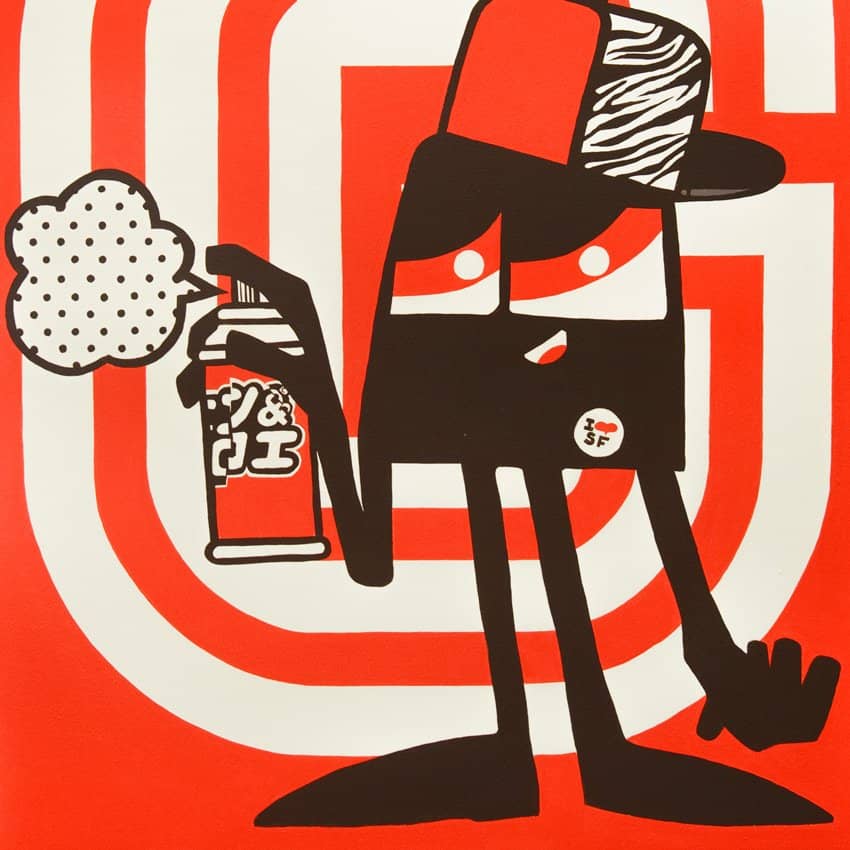
    In February 2009, the iconic street artist Shepard Fairey—famous for his “Hope” poster supporting Barack Obama—found himself in legal trouble… right as his work was being celebrated in Boston.


    The Arrest: A Sudden Disruption

    • Date & Location: Fairey was arrested on the evening of February 6, 2009, while en route to the opening event of his solo exhibition “Supply & Demand” at Boston’s Institute of Contemporary Art (ICA).
    • Reason: He was taken into custody on two outstanding warrants issued earlier on January 24 for tagging public property—namely locations near the BU Bridge and a Massachusetts Turnpike utility building. The warrants alleged graffiti activity connected to his Obey Giant campaign.

    Amid the Celebration

    Fairey had become an acclaimed figure in Boston’s art circles, even appearing alongside Mayor Thomas Menino in city media promoting his exhibit. His arrest—right before hundreds gathered for a sold-out ICA event—felt jarringly contradictory.

    Even a cab ride didn’t save him: as soon as he neared the ICA, police pulled him over and arrested him—just before he was due to DJ at the opening.


    Charges & Legal Journey

    • Initial Charges: Fairey faced more than 30 counts related to vandalism, tagging, and destruction of property.
    • Early Resolution: By April 2009, a Boston magistrate had dismissed seven of 17 charges due to insufficient evidence.
    • Plea Deal & Outcome:
      • Fairey pleaded guilty to three misdemeanor vandalism charges—one for defacing property, and two for wanton destruction of property valued under $250.
      • The remaining 11 charges were dropped.
      • He received two years’ probation, a $2,000 fine earmarked for graffiti removal, and restrictions on possessing “tagging materials” in Suffolk County unless part of authorized art.
      • Conditions included notifying officials in advance of visits to Suffolk County.

    Shepard Speaks: Reflection & Purpose

    Fairey expressed relief at putting the incident behind him:

    “I’m very happy that I’m gonna get to make art without this black cloud over my head…”.

    He defended his street art, saying it was about connection and expression:

    “Street art is a way to connect with an audience directly, without any bureaucracy. Being arrested is a risk I take…”.

    He criticized Boston’s approach:

    “It’s unfortunate that that’s how some people in the Boston Police Department thought that their time and resources should be used.”.


    Artistic Freedom vs. Legal Boundaries

    • With over a dozen arrests to his name, Fairey viewed this case as part of a recurring cycle for street artists—both the rebellion and the consequences that follow.
    • His arrest sparked citywide debate:
      • Supporters argued graffiti offers vital, non-commercial public expression.
      • Critics emphasized property rights and legal order.

    The Bigger Picture

    Ultimately, Fairey’s experience in Boston underscored the persistent tension between street art as cultural expression—and its complexities when clashing with legal norms. His plea deal paved the way for clean-slate creativity and served as a fascinating chapter in the evolving story of graffiti as legitimate art.


    Final Thoughts

    Shepard Fairey’s Boston arrest was more than just a law enforcement incident—it represented a cultural intersection where activism, art, and authority collided. While his legal resolution allowed him to continue his work, the case prompted serious reflection on how creative expression fits into public space—and who gets to decide its limits.

  • Defining Exposure

    Defining Exposure

    What is Exposure in Photography?

    Exposure is one of the most fundamental concepts in photography. It refers to the amount of light that reaches your camera’s sensor (or film) when you take a photo. Proper exposure ensures that your image is neither too bright (overexposed) nor too dark (underexposed), but balanced to reveal the details you want.

    The Exposure Triangle

    Exposure is controlled by three key settings, often called the Exposure Triangle:

    1. Aperture (f-stop) – The size of the lens opening. A wider aperture lets in more light, while a smaller aperture lets in less.
    2. Shutter Speed – How long the shutter stays open. A slower speed allows more light in, while a faster speed reduces light.
    3. ISO – The sensitivity of your camera’s sensor to light. A higher ISO brightens the image but can introduce noise.

    Why Exposure Matters

    • Creative Control: Exposure affects mood and style. Bright, airy images feel different from dark, moody ones.
    • Detail Preservation: Proper exposure ensures highlights aren’t blown out and shadows aren’t lost.
    • Technical Quality: Balancing exposure reduces noise and maintains sharpness.

    How to Check Exposure

    Most cameras provide tools like:

    • Light Meter: Indicates if your shot is under, over, or correctly exposed.
    • Histogram: Shows the distribution of tones in your image.

    Final Thoughts

    Mastering exposure is the first step toward taking control of your photography. Once you understand how aperture, shutter speed, and ISO work together, you’ll have the freedom to create images that match your vision—whether that’s crisp landscapes, dreamy portraits, or dramatic low-light shots. Practice adjusting these settings in different lighting conditions, and soon exposure will become second nature.

  • Best practices to optimize your wordpress site

    Best practices to optimize your wordpress site

    WordPress powers over 40% of all websites on the internet, making it one of the most popular CMS platforms. However, without proper optimization, your site can become slow, insecure, and less user-friendly. A well-optimized WordPress site improves speed, SEO rankings, and user experience, which ultimately drives more traffic and conversions.

    In this post, we’ll cover the top best practices to optimize your WordPress site.

    1. Choose a Reliable Hosting Provider

    Your hosting provider plays a critical role in your site’s performance. Look for:

    • High uptime guarantee (99.9% or higher)
    • Fast server response times
    • Scalable resources for traffic spikes
    • WordPress-specific hosting (e.g., managed WordPress hosting)

    Popular options include SiteGround, WP Engine, and Kinsta.

    2. Use a Lightweight Theme

    Heavy themes with unnecessary features slow down your site. Instead:

    • Choose a lightweight, responsive theme like GeneratePress or Astra.
    • Avoid bloated themes with excessive animations or bundled plugins.

    3. Optimize Images

    Images often account for the largest portion of page size. To optimize:

    • Compress images using tools like TinyPNG or ShortPixel.
    • Use WebP format for better compression.
    • Implement lazy loading so images load only when visible.

    4. Install a Caching Plugin

    Caching reduces server load and speeds up page delivery. Recommended plugins:

    5. Minify CSS, JavaScript, and HTML

    Minification removes unnecessary characters from code, reducing file size. Most caching plugins include this feature, or you can use:

    6. Use a Content Delivery Network (CDN)

    A CDN distributes your site’s content across multiple servers worldwide, improving load times for global visitors. Popular CDNs:

    7. Keep WordPress, Themes, and Plugins Updated

    Updates often include performance improvements and security patches. Always:

    • Enable automatic updates for minor releases.
    • Regularly check for theme and plugin updates.

    8. Limit Plugins

    Too many plugins can slow down your site and create security risks. Best practices:

    • Use only essential plugins.
    • Remove inactive or unnecessary plugins.
    • Test performance impact before installing new ones.

    9. Optimize Your Database

    Over time, your database accumulates unnecessary data. Use plugins like:

    10. Enable GZIP Compression

    GZIP compresses files before sending them to the browser, reducing load times. Most caching plugins or hosting providers offer this feature.

    11. Monitor Performance

    Regularly check your site speed using:

    Final Thoughts

    Optimizing your WordPress site is not a one-time task—it’s an ongoing process. By following these best practices, you’ll ensure your site remains fast, secure, and user-friendly, which is essential for SEO and conversions.

  • Top tips for photographers in 2024

    Top tips for photographers in 2024

    As a professional photographer with many years of experience, I’ve gathered a wealth of tips and tricks that can elevate your photography skills. Here are some key insights:

    Composition

    1. Rule of Thirds: Divide your frame into thirds, both horizontally and vertically, and place your subject at the intersections or along the lines to create a balanced and engaging composition.
    2. Leading Lines: Use natural lines in the scene to guide the viewer’s eye towards the main subject. This can be anything from roads and rivers to fences and shadows.
    3. Framing: Look for natural frames within your environment, like archways, windows, or branches, to add depth and focus to your subject.

    Lighting

    1. Golden Hour: Shoot during the golden hour (just after sunrise or before sunset) for soft, warm, and flattering light.
    2. Diffused Light: On harsh, sunny days, use a diffuser or find shaded areas to soften the light and avoid harsh shadows.
    3. Artificial Lighting: Learn to use and manipulate artificial light sources like flash, strobes, and continuous lights to control your lighting environment.

    Camera Settings

    1. Manual Mode: Master manual mode to have full control over your aperture, shutter speed, and ISO, allowing you to creatively expose your shots.
    2. Depth of Field: Use a wide aperture (low f-number) for a shallow depth of field to isolate your subject, or a narrow aperture (high f-number) for a deep depth of field to keep more of the scene in focus.
    3. Shutter Speed: Experiment with different shutter speeds to capture motion. Use a fast shutter speed to freeze action or a slow shutter speed to create a sense of movement.

    Post-Processing

    1. Editing Software: Get proficient with editing software like Adobe Lightroom or Photoshop to enhance your images. Basic adjustments like exposure, contrast, and color balance can make a significant difference.
    2. Non-Destructive Editing: Always work with non-destructive editing techniques, like adjustment layers or virtual copies, so you can easily revert to your original image.
    3. Consistent Style: Develop a consistent editing style to give your portfolio a cohesive look. This can be achieved through consistent color grading, contrast levels, and other stylistic choices.

    Practical Tips

    1. Backup Your Work: Always back up your photos in multiple locations to prevent data loss.
    2. Keep Learning: Stay updated with new techniques, trends, and equipment by following photography blogs, attending workshops, and networking with other photographers.
    3. Practice Regularly: Like any skill, regular practice is key. Challenge yourself with new projects, subjects, and environments to continuously improve.

    These tips have helped me hone my craft over the years, and I hope they prove useful in your own photographic journey. Happy shooting!

  • Five design trends that will set 2022 on fire

    Five design trends that will set 2022 on fire

    From gooey blobs in 3D art to posters and album covers drenched in intense, eye-searing colors, some trends had a big 2021. Here, we explore how they might change and evolve in 2022 and shed some layers that will (probably) get left behind.

    (more…)
  • A Deep Dive into the Psychology of User Decisions

    A Deep Dive into the Psychology of User Decisions

    Psychology:
    A deep dive into user decisions

    We like to apply labels to users: they’re irrational, lazy, unpredictable, rushed, and so on.

    To some extent that may be true—we aren’t machines.

    But research shows that users actually make decisions based on a set of predictable subconscious patterns.

    To create satisfying digital experiences, UX designers should be aware of—and support—these cognitive habits.

    Heuristics

    Human beings use psychological tactics and biases to get to decisions quickly. These mental shortcuts are called heuristics. We use heuristics in everyday life, but we especially like using them with software.

    We don’t follow these patterns out of laziness or because we’re scatter-brained. It’s quite rational to take advantage of heuristics as a user because…

    Let’s take a look at some of the most common heuristics that users employ.

    In the digital world, there’s very little penalty for being wrong.

    Web pages can be complicated. We’d rather make a decision and get on with our lives.

    Carelessly clicking around is more fun because we get a small dopamine rush from each click.

    The web enables us to move quickly from one decision to the next, at a much faster pace than the physical world. So that’s what we do.

    Satisficing

    A combination of the words “satisfy” and “suffice.” It means to settle for the first reasonable option you find, without considering the whole set of possibilities. We don’t look for the right answer—we look for whatever is good enough.

    Users make quick and dirty scans. When they come across something that refers even a little to what they’ve come for, they instinctively click it.

    Loss Aversion

    Losses loom larger than gains in our minds. It is thought that the pain of losing is about twice as powerful as the pleasure of gaining. We put in more work and take more risks to avoid losses than we do to make gains. Part of Prospect Theory.

    Users will go to great lengths to avoid something that’s potentially negative, or that could cause them to lose what they already have.

    Availability

    People draw conclusions based on what comes to mind immediately. We give a lot of importance to things that we recall quickly and things we can already see right in front of us.

    If a user needs to make a decision on a page, what’s right in front of them? What can they recall quickly from other pages? What do they notice first?

    Decision Fatigue

    Making a lot of decisions lowers a person’s ability to make rational ones. It’s also exhausting.

    If a user is forced to make decision after decision after decision, they’ll eventually start making sub-optimal choices… or give up entirely.

    Reference Dependence

    Human beings do not have an innate way to determine absolute value. So we assign value by comparing one thing to another. We make judgments in relative rather than absolute terms.

    In a set of choices in an interface, how the options relate to each other will determine what the user will do.

    Status Quo Bias

    Unless there’s a compelling incentive, people are more likely to stick to the default. In other words, we tend not to change the established situation.

    This explains, for example, why users rarely take advantage of fancy customization features or change default settings.

    Hick’s Law

    The number of stimuli present influences the time and effort required to make a decision.

    When users come across a situation with too many options, sometimes they’ll try to bypass the unpleasantness of Hick’s Law by hastily making any decisions.

    Sea Bird in Flight

    So what?

    As designers, what do we do about all this?

    Here are a few ways we can tailor our digital experiences to these heuristics.

    1. Decrease your DPP

    One helpful exercise is to look at what we can call our DPP: Decisions Per Page.

    Take an important page from your interface and count the number of possible decisions a user could make on that page. This includes actions (which always require a decision) or information that leads to a decision.

    I’m willing to bet the number is higher than you would have guessed.

    If the DPP is too high, what do you do?

    Completely get rid of some decisions if they’re unnecessary or duplicates from another page.

    Hide some options, or at least dramatically reduce their visual weight.

    Split up decisions onto more pages. Break complex tasks down into smaller steps.

    2. Reduce visual signals

    Start by reducing the number of colors and fonts. Using more than four meaningful colors causes the “rainbow effect” which disorients the brain and creates an impression of ugliness.

    Movement is distracting. Use animation sparingly and only for a specific purpose.

    Build a design system. It ensures consistency between elements, and prevents users from having to re-learn the interface on every new page.

    3. Optimize the default experience

    Be aware that many people will never use fancy customization options. Make sure the general default experience provides for all the important task flows.

    Forms provide lots of opportunities to be helpful. For example, we could pre-populate fields with the most common value or a realistic example. This representative value helps the user understand how to complete the field and what the expected response is. Not to mention it will save most users time and decision-making energy.

    4. Prioritize for the user

    Since many users aren’t going to accurately prioritize things on their own, we should do some of that work for them. The ultimate goal is that they can glance at any page and know instinctively which items are most important.

    Knowing what to prioritize requires that you learn about your users, their goals, and their main workflows. Think about what is essential (vs. what is optional) and what moves the user forward.

    We can give the user visual clues to create a clear hierarchy. Our brain assigns importance to things based on size, color, imagery, contrast, white space, and alignment.

    5. Evaluate your content

    Remember almost all users scan—they don’t read. Classic principles of good writing, including descriptive headings and inverted-pyramid structures, help users get meaning from content.

    Some common red flags include a lack of headings and big, long blocks of text. Call attention to important information using bulleted lists and bold or italic fonts. Take the time to craft your microcopy.

    6. Consider the post-click experience

    What happens when a user clicks on something? What’s the next thing they see and how does it connect to where they just were? How does it fit into their whole journey through your interface?

    It could be easy to think of each page in isolation. But remember pages aren’t individual silos—they’re pieces of flows. It’s all a series of connected actions.

    Give good information scent with link labels so users know where they’re going. Allow them to gracefully recover from clicking on the wrong thing to eliminate the “cost” of clicking. Make sure they’re always moving forward.

  • How Much Money Do Designers Make?

    How Much Money Do Designers Make?
    Privacy Policy Image

    Designers:
    How much do they make?

    In this post I’ll answer the question How Much Money Do Designers Make from entry level to those that have been in the industry a while. Please continue reading below for the full post.

    $42,000+ (on average in the U.S. for entry-level designer positions)

    Getting the most basic part of the question out of the way first, according to Indeed.com the average entry-level web designer rate per hour is $22.62, which over the course of a year averages out to a salary of $42,934.

    Yes, there are tech roles that pay more, but if you’re someone with a background in traditional print or graphic design, a jump to web design can be a pretty seamless transition. And—unlike those traditional jobs than can be hit or miss as media continues to go more and more digital— web design jobs are plentiful, with Indeed.com listing over 15,000 positions as of this writing.

    $53,877+ (on average in U.S. for senior positions with 3+ years of web design experience)

    Money Talks Image

    Once you have three or more years of experience in the field and can qualify for senior level positions, Indeed’s average salary moves up to $53,877 (and peaks as high as $118,809 for senior designers who add UX design skills and experience to their resume).

    Lincoln Cash Image Close-Up

    Average Rates Vary Based on Geography

    Finally, Web design salaries also vary based on your geographical area (or the geography of the company you’re applying for, if you’re working remotely).

    Here’s a breakdown of how the average entry-level salary varies between East and West Coast (New York and Los Angeles) and between high cost of living city and low cost of living city (we’ve used New York and Yuma as our examples).

    Another factor that brings variability to design salaries is the fact that design work isn’t always a single commitment to one company paying a fixed wage.

    New York: $62,237

    Yuma: $41,452

    Oakland: $66,240

    Chicago: $60,230

    Yes, it’s possible to get a job as a designer working for one company, but—like all creative jobs— design can be a freelance career, where the amount of income you bring in will depend on the number of clients you land and the amount of work you’re interested in and willing to do.

  • How To Create Custom Website Backgrounds The Easy Way

    How To Create Custom Website Backgrounds The Easy Way

    In this post I’ll show you how to create custom website backgrounds the easy way with these seven tips to take your site to the next level. While there are many ways to use textures in web design, you’ll get a lot more mileage out of those backgrounds if you take a modern approach, and follow a few simple rules.

    Here are seven tips to help you use background textures in web design well (all of which are in-line with the latest and greatest 2019 design patterns and trends).

    1. Go Simple and Understated
    2. Go Big and Bold
    3. Incorporate a Trend
    4. Use an Image
    5. Use Color Variations
    6. Grab a Gradient
    7. Animate It
    (more…)